
How to use UUCL Connect
GETTING STARTED
Joining UUCL’s HumHub social network (UUCL Connect) is easy – simply ‘Sign up’ at connect.uuloudoun.org. You can choose to create a new login with a personal email, or use the Google button to use your Google account as your login (this is the easier option, as once you have connected your account, it’s a push-button login going forward).
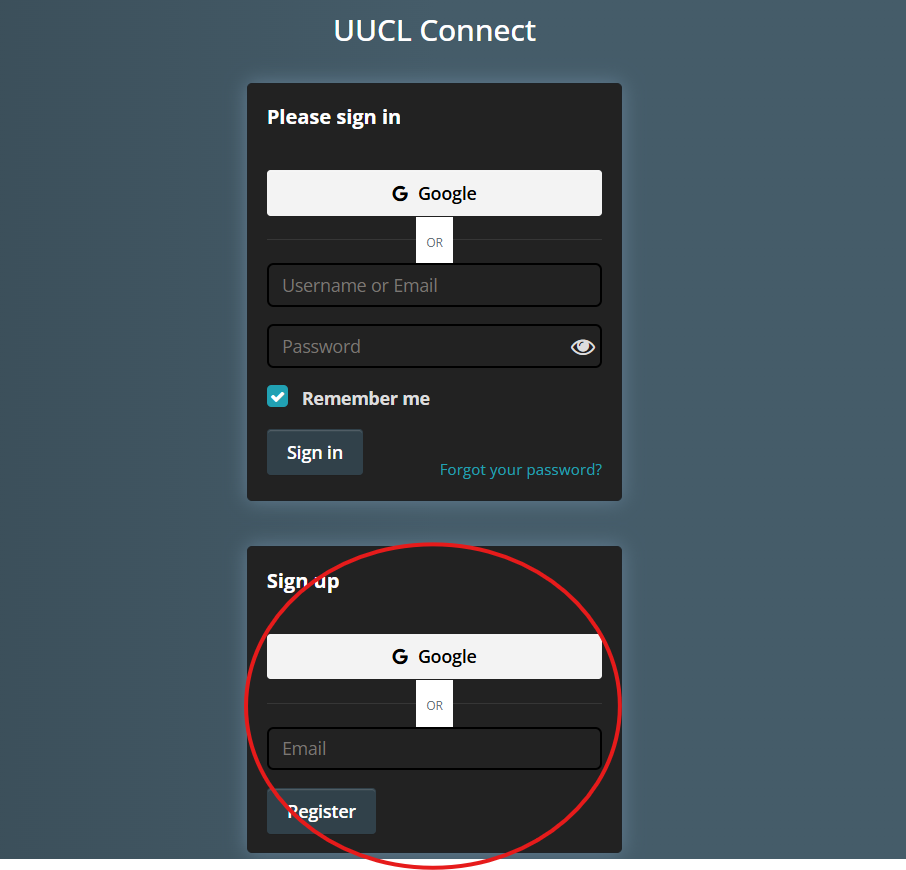
You may also receive an email invite to join UUCL Connect, or a specific workspace (such as if you are a member of a committee, or the board). Simply follow the instructions on these emails.
Once you have registered, your details will be reviewed by an administrator before you have access to UUCL Connect’s Member space. While this may result in a short delay, it is one way we can ensure our information is safe and secure.
For a detailed step by step rundown on how to get registered and set up in HumHub or to watch the video tutorial, click HERE (Note, this is an intro video done by another company’s website, but it covers all the basics in an effective manner).
KEEPING HUMHUB HELPFUL, POSITIVE AND SUPPORTIVE
Like any workplace, it’s important that HumHub remains a productive and supportive environment for all UUCL members. Below are some simple rules to guide what you do and say on Hum Hub:
Communicate appropriately – if you wouldn’t say or share it in person, don’t share it online.
Use UUCL Connect functions – there are a number of different functions that will help keep the things organized and make the information we share easy to find.
- Use the ‘Reply’ function, to respond to a post, don’t start a new post of your own.
- Tag a specific person if you’re responding directly to them. You can tag a user in a post or reply by using the @ symbol and the user’s name eg @username)
- Use the ‘Like reaction to show agreement or support to a post, but having nothing new or extra to add. This makes additional responses easier to find in the comments section.
NAVIGATING HUMHUB
Once registered, the best way to learn your way around HumHub is to follow HumHub’s ‘Getting Started’ guides found on the right-hand side of your Dashboard.
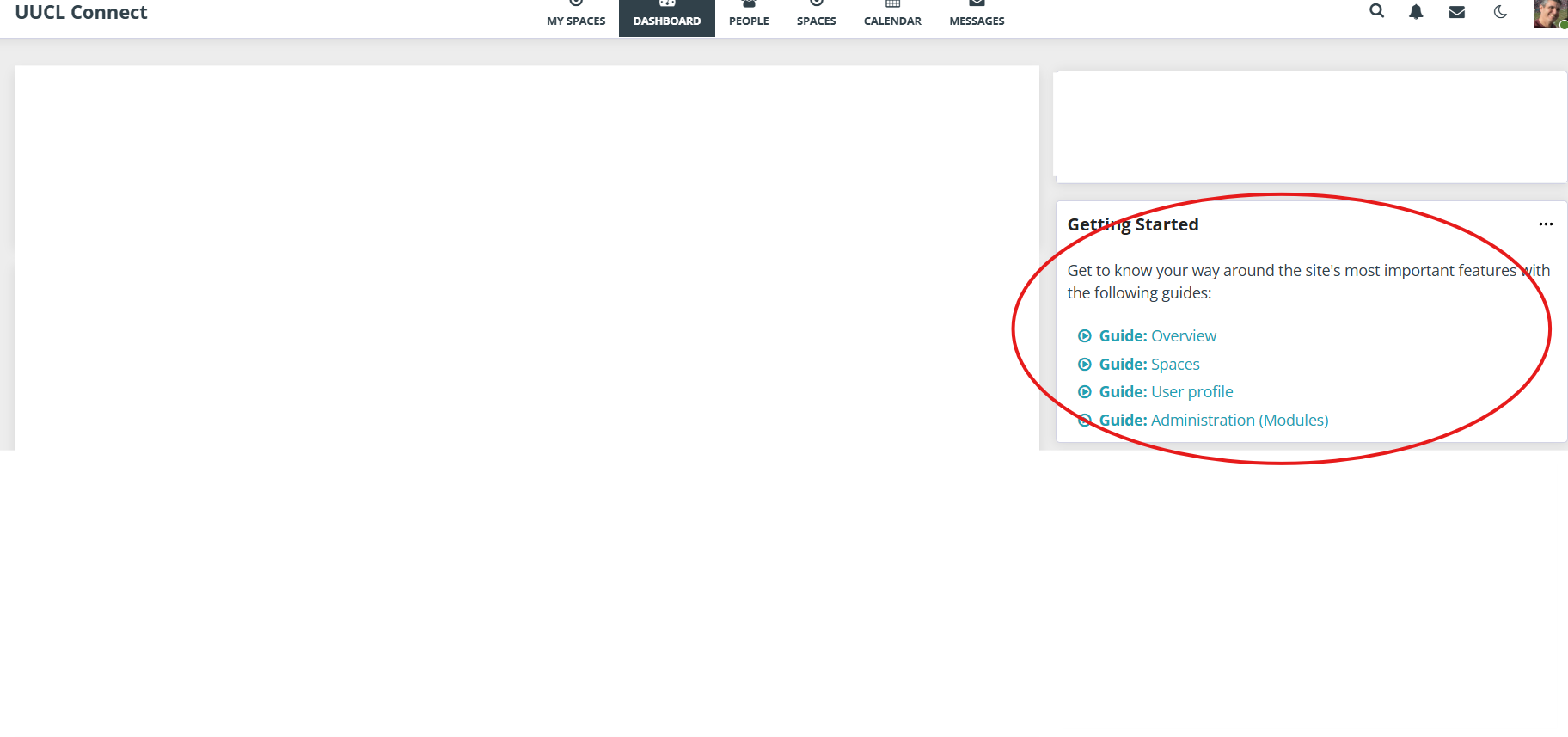
The main areas of HumHub that you will be using include:
- My Spaces – this is a list of all the groups you are a member of
- Dashboard – Your dashboard displays recent posts and activities from the groups you are a member of.
- People – Find the profiles of anyone registered on UUCL Connect
- Spaces – this is a list of all ‘public’ groups on UUCL Connect that you may request to join. There are also private groups that are invisible and therefore cannot be seen here. You will need to be invited by an administrator or member from those groups to join.
When you arrive on a Workspace page you may also find a number of menu options on the left-hand side:
- Stream – This contains all the posts and activity of this workspace organized in chronological order by date.
- Polls – This function allows you to create posts that record votes or responses to questions.
- Files – This option allows you to upload and post, and/or find files that have been uploaded, such as examples of documents or files that need sharing.
- Calendar – This option brings up a calendar for the group, allowing you to see activities that are specific to that space
- LinkList – A page of links that are relevant to the group
- Wiki – A page of information that the group has set up for the group
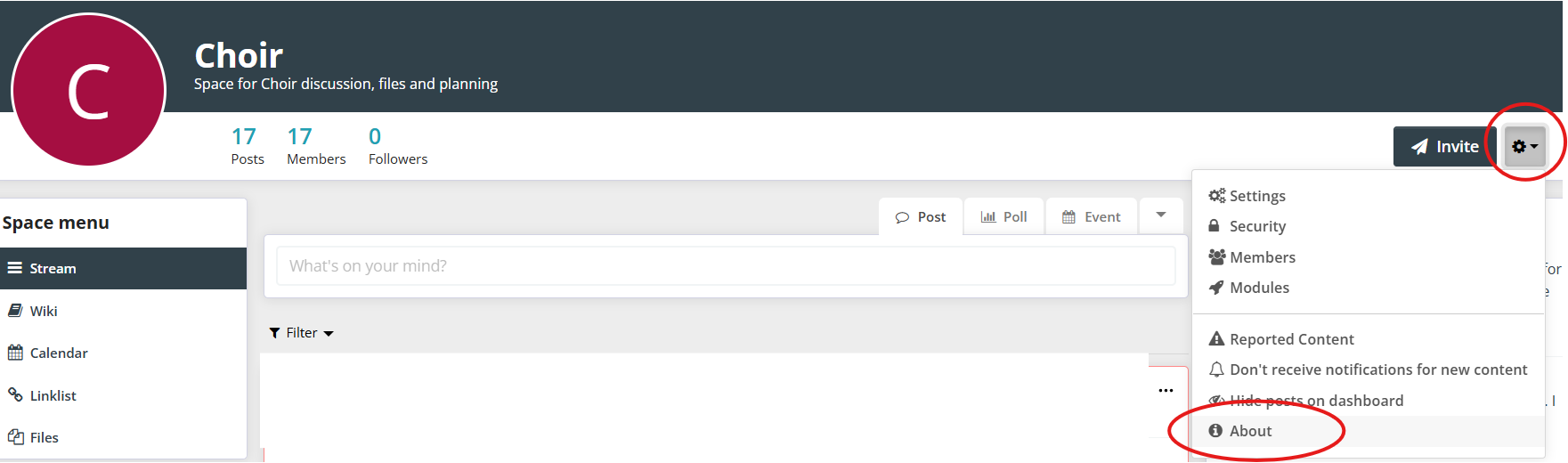
- About – This area provides information about the purpose of the Workspace and who the owner and administrators are for the group.
At the top right of your page you will also find menu options to update your profile (such as including an appropriate profile photo) and make changes to your account settings (including how you are notified about new posts and replies – see below).
CHANGING NOTIFICATION SETTINGS
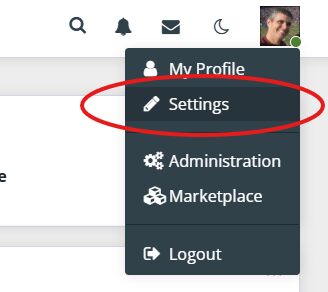
Receiving endless notification emails or pop ups can interrupt your life. HumHub allows you to customize how many notifications your receive in a number of ways. To make these changes simply open your Settings Menu by clicking on your profile picture (in the top-right corner)
E-mail Summaries
HumHub can automatically send e-mail summaries of conversations and activities that have occurred in your Spaces. You have the ability to control when these emails are sent, and what information is included.
Some users may choose to engage with HumHub through daily or weekly Email Summaries, rather than ongoing notifications.
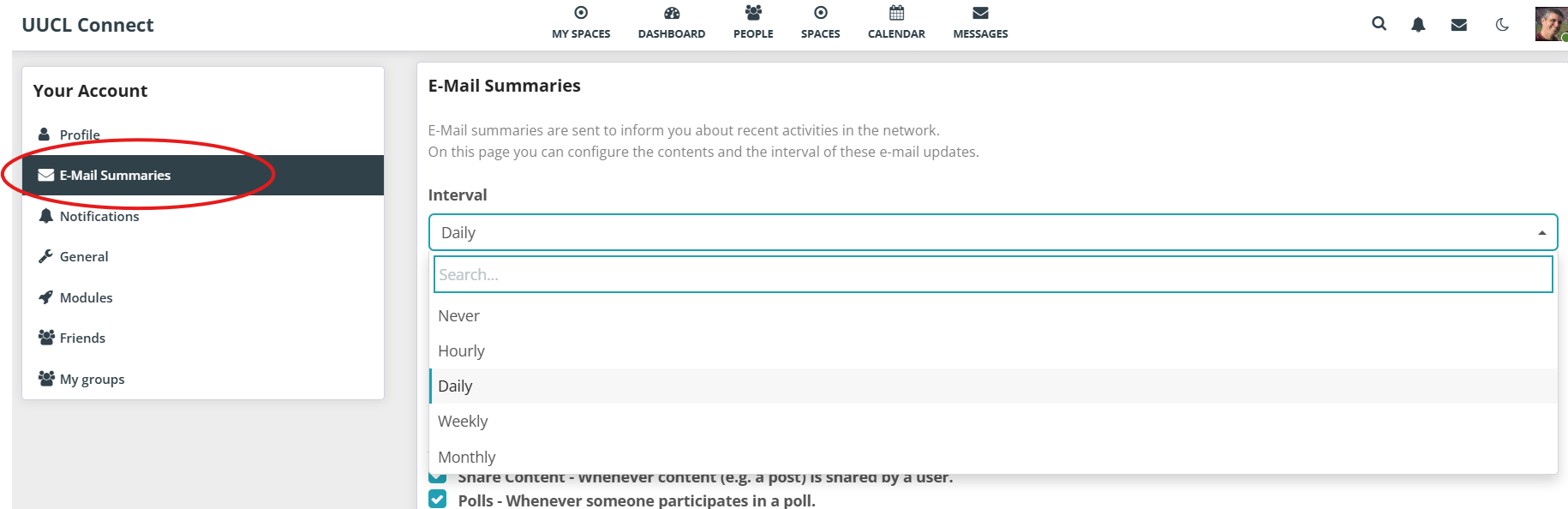
- By setting an Interval you can choose to receive email summaries from HumHub hourly, daily, weekly or never.
- Using the Spaces option you are able to include or exclude specific spaces from your email summaries.
- By selecting specific Activities, you can control what types of activities (such as Comments, Polls, New Users etc) are included in your Email Summaries.
We recommend leaving at least a weekly summary enabled, as this will serve as a reminder to you about UUCL Connect, and can bring to light conversations that may be of interest to you, without overwhelming you.
Notifications
Using the notification settings you are able to control what type of notifications you receive when specific activities occur in UUCL Connect . Unlike an email summary, these notifications happen almost instantly.
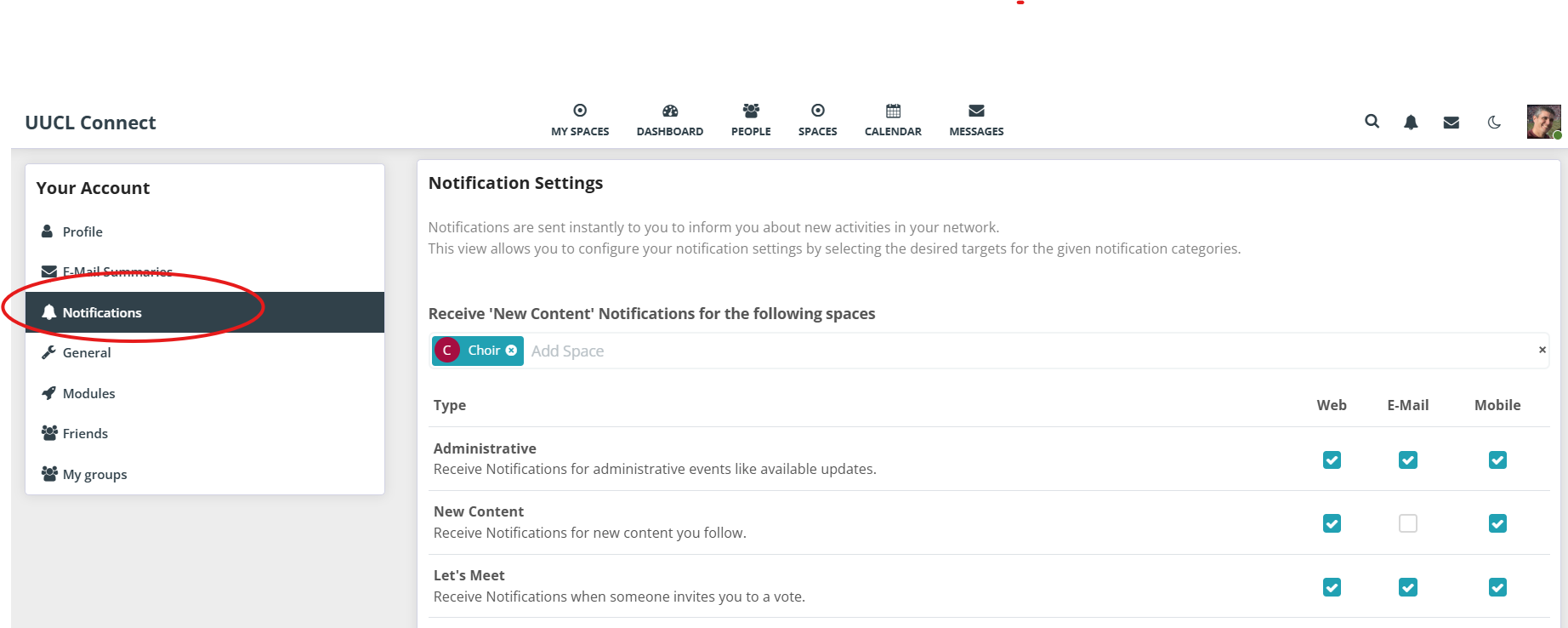
The Notification controls you have include:
– Whether you receive desktop notifications when you are online – this would mean you receive a pop-up notification whenever an activity you have selected occurs.
– Receiving notifications whenever new content is added to specific Spaces – for example, if you are a member of UUCL Jammers or other group.
– Receiving notifications on your mobile device. You need to install the HumHub app on your device, and use connect.uuloudoun.org as the website when prompted.
-The type of activity you receive notifications about including:
- Administrative – Receive Notifications for administrative events like available updates.
- Message – Receive Notifications when someone sends you a message.
- Conversation – Receive Notifications when someone opens a new conversation.
- Space Membership – Receive Notifications of Space Membership events.
- New Content – Receive Notifications for new content you follow.
- Following – Receive Notifications when someone is following you.
- Mentionings – Receive Notifications when someone mentioned you in a post.
- Comments – Receive Notifications when someone comments on my own or a following post.
- Likes – Receive Notifications when someone likes your content.
GETTING SUPPORT
If you are having difficulty on HumHub – whether it’s using the tool, finding a post or have a concern about something being shared please reach out to one of the space Administrators (to find out who they are, simply click ‘About’ in the settings menu in the specific Workspace.
If you are still having problems, or do not get a reply from the Administrator, please contact one of the admins.